category filter for news
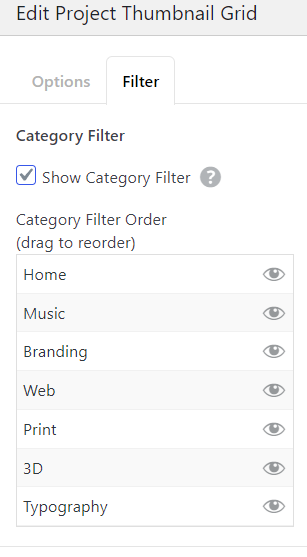
-
ah yea? mmh
i haven't really planned it mmh :O
im writing it down, not sure if and when i will work on it! -
ah yea? mmh
i haven't really planned it mmh :O
im writing it down, not sure if and when i will work on it!Would have been amazing if possible 😅 , but yeah go with your priorities. 👊
-
hey, you can achieve this quite well by utilising news categories, the expand/collapse row feature and creating separate news elements. I just figured it out earlier. Let me know if you need further help.
-
@arminunruh Would love to have this feature too! 😍
-
@alasdair17 But thanks for the tip, it's actually an okayish workaround!
-
hey, you can achieve this quite well by utilising news categories, the expand/collapse row feature and creating separate news elements. I just figured it out earlier. Let me know if you need further help.
@alasdair17 Hi Alasdair, I'd be really interested in how to implement your "work around", could you explain with some more detail? Very much appreciated!
-
@alasdair17 Hi Alasdair, I'd be really interested in how to implement your "work around", could you explain with some more detail? Very much appreciated!
@CineST hey sorry for the late reply.
So what to do is:
Create your news categories so you have for example: "news 1", "news 2" and "news 3".
Create your news posts and assign them to the one of the news categories.
Create a new page and add 4 new blank rows.
Right click on row 2 and choose "collapse row", repeat this for rows 3 and 4. It should now say "collapsed" on rows 2, 3 and 4.
Go to More > News Element and at the top left of the dialog box choose "news 1" category - this will only show news from the "news 1" category. Drop this news element in the second row.
Repeat this step again but choose "news 2" from the categories dropdown this time and drop it into the third row.
Repeat again but choose "news 3" and drop into the fourth row.
Now create a text box and type in "news 1", highlight "news 1" and click the upward and downward arrow box (expand/ collapse row link) - this is along the top of the dialog box and to the left of the font name.
The expand row box dialog box will open up and then select "row 2" - you will know its been selected when it becomes a light violet colour. Also in this box tick "collapse other rows". Click Save and then Ok. Drop this text box into the first row.
Now create another text box and type in "news 2" and repeat the same steps but select "row 3" this time and again drop it beside the first text box in the first row.
Create another text box and type in "news 3" and repeat the same steps but this time select "row 4" and finally drop the textbox beside the other two textboxes on the first row.
Publish/Update the page and you should have a simple news category filter system :)
An extra tip would be to change the row gutters between the collapsed rows to 0 so when you filter them they show up in the same place.
Of course you can also call your news categories anything and the textboxes too can be something different - "news 1, news 2, news 3" are just examples.
Lastly, when you are in the expand/row collpase dialog box you can play around with the replacement text and the speed of which they open too.
Hope that helps!
Cheers!
-
Hey! Any updates on this? I've done it before using the expand/collapse row feature, but this time I think it might be too much trouble for the client, because they'd have to add new categories manually :/ Thanks!
-
Hey Maria! Sry about the delay, been travelling. I can start working on this soon!
-
Hey Maria! Sry about the delay, been travelling. I can start working on this soon!
@arminunruh thankssss!! 🙏
-
hi @arminunruh,
Any news about the news categories filters ?
It would be great.
Thx -
not yet sorry :/

 image url)