Skip to content
  • Recent
  • Tags
  • Popular
  • Users
  • Search
Skins
  • Light
  • Brite
  • Cerulean
  • Cosmo
  • Flatly
  • Journal
  • Litera
  • Lumen
  • Lux
  • Materia
  • Minty
  • Morph
  • Pulse
  • Sandstone
  • Simplex
  • Sketchy
  • Spacelab
  • United
  • Yeti
  • Zephyr
  • Dark
  • Cyborg
  • Darkly
  • Quartz
  • Slate
  • Solar
  • Superhero
  • Vapor

  • Default (No Skin)
  • No Skin
Collapse

Lay Theme Forum

  1. Home
  2. Shop / WooCommerce
  3. Add to cart button below image – products thumbnail grid

Add to cart button below image – products thumbnail grid

Scheduled Pinned Locked Moved Shop / WooCommerce
4 Posts 2 Posters 148 Views 2 Watching
  • Oldest to Newest
  • Newest to Oldest
  • Most Votes
Reply
  • Reply as topic
Log in to reply
This topic has been deleted. Only users with topic management privileges can see it.
  • mppM Offline
    mppM Offline
    mpp
    wrote on last edited by
    #1

    Hello!

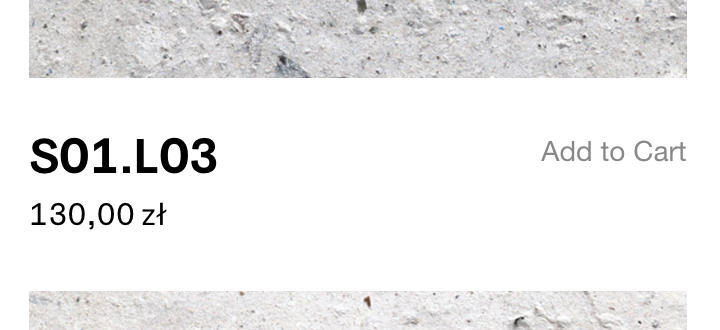
    Working on a store page – the below image description for the products thumbnail grid –
    takes a lot to put the "add to cart" button on the right side of the below-image. Please advice if there is a better way to get that done.

    Best!

    Screenshot 2026-01-05 at 05.29.06.png

    /* store page title + button*/
    
    /*description not 100%*/
    .lay-products-thumbnails-grid .below-image .woocommerce-loop-product__title ,.lay-woocommerce-product-thumbnail-price{
    	width: 64%; float:left; }
    
    .lay-products-thumbnails-grid .product .woocommerce .add_to_cart_inline 
    {
    float: right; color: #888;
    }
    
    .lay-products-thumbnails-grid .below-image .add_to_cart_inline {
    	margin: 0px !important;
    	float:right !important;
    	text-align: right;
    	color: #888;
    }
    
    .lay-products-thumbnails-grid .below-image #lay-woocommerce .button, .lay-content a.button.add_to_cart_button {
    	padding: 0px !important;
    	color: #888;
    }
    
    .lay-products-thumbnails-grid .below-image .ajax_add_to_cart{
    	margin: 0px !important;
    }
    
    #lay-woocommerce .button, #lay-woocommerce a.button, .lay-content a.button.add_to_cart_button {
      color: #888;
    	opacity: 1;
    	line-height: 0px !important;
    	top:-20px
    }
    
    .lay-products-thumbnails-grid #lay-woocommerce .button, #lay-woocommerce a.button, .lay-content a.button.add_to_cart_button:hover {
        border-color: #000;
        border-bottom: 0px solid #000 !important;
        border-width: 0px;
        border-style: solid;
        background-color: transparent;
    }
    
    1 Reply Last reply
    0
    • arminunruhA Offline
      arminunruhA Offline
      arminunruh
      Global Moderator
      wrote last edited by
      #2

      hey!

      the next lay theme update will include a setting for this.
      in customize -> woocommerce -> product thumbnails ->
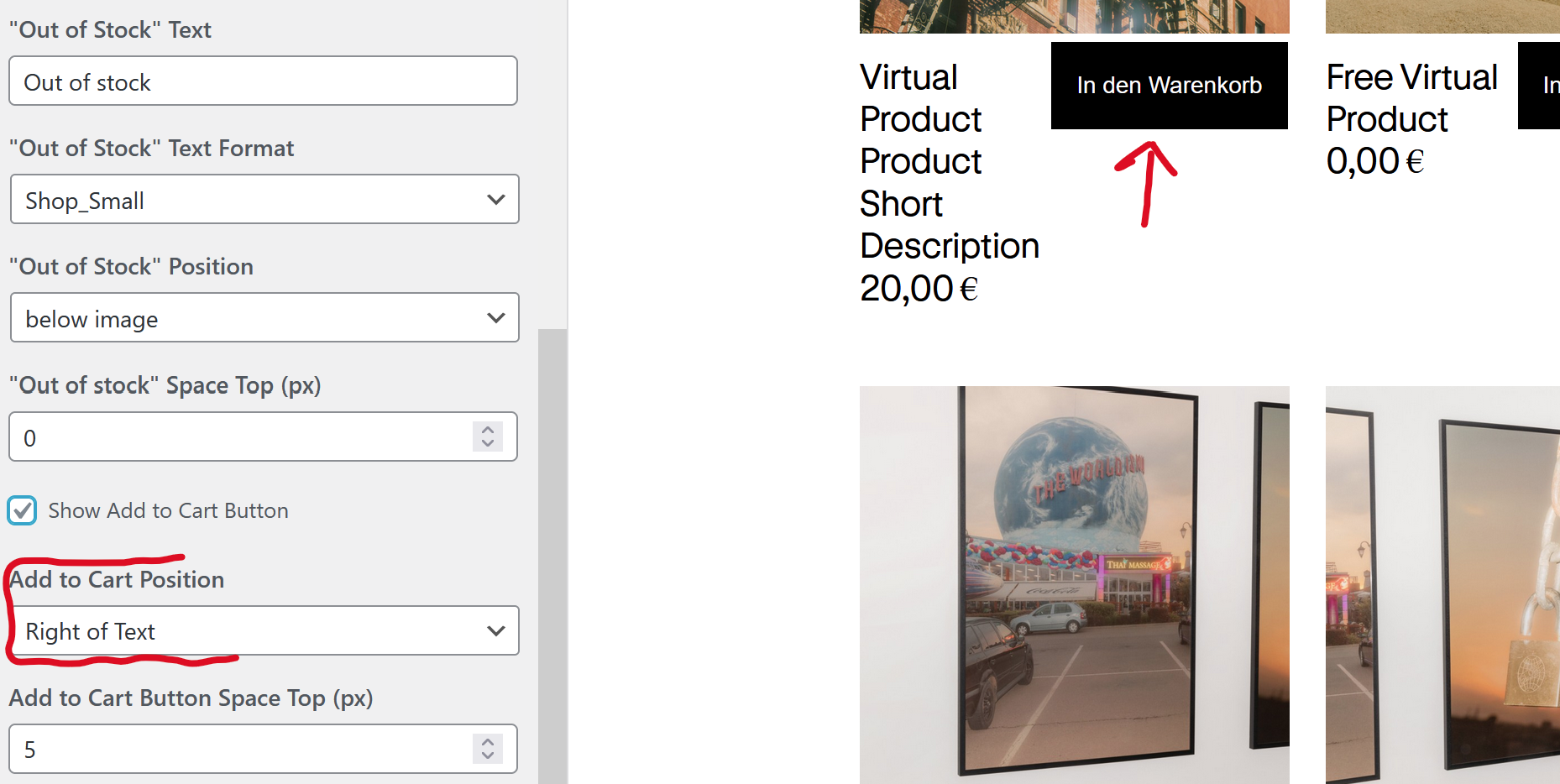
      image.png

      1 Reply Last reply
      0
      • arminunruhA Offline
        arminunruhA Offline
        arminunruh
        Global Moderator
        wrote last edited by
        #3

        your css is great, i think i would use display flex on the parent container of the text and button though, but the result is the same

        mppM 1 Reply Last reply
        0
        • arminunruhA arminunruh

          your css is great, i think i would use display flex on the parent container of the text and button though, but the result is the same

          mppM Offline
          mppM Offline
          mpp
          wrote last edited by
          #4

          @arminunruh
          Perfect! Thanks!

          1 Reply Last reply
          0
          Reply
          • Reply as topic
          Log in to reply
          • Oldest to Newest
          • Newest to Oldest
          • Most Votes


          I also code custom websites or custom Lay features.
          💿 Email me here: 💿
          info@laytheme.com

          Our Web Development company: 100k.studio

          Want to tip me? https://www.paypal.com/paypalme/arminunruh

          Before you post:
          1. When using a WordPress Cache plugin, disable it or clear your cache.
          2. Update Lay Theme and all Lay Theme Addons
          3. Disable all Plugins
          4. Go to Lay Options → Custom CSS & HTML, click "Turn Off All Custom Code", click "Save Changes"

          This often solves issues you might run into

          When you post:
          1. Post a link to where the problem is
          2. Does the problem happen on Chrome, Firefox, Safari or iPhone or Android?
          3. If the problem is difficult to explain, post screenshots / link to a video to explain it
          Online Users
          Forgot your key, lost your files, need a previous Lay Theme or Addon version? Go to www.laykeymanager.com
          laytheme.com
          • Login

          • Don't have an account? Register

          • Login or register to search.
          • First post
            Last post
          0
          • Recent
          • Tags
          • Popular
          • Users
          • Search