Fullscreen Slider: Image align (left/center/right)
-
Hey,
I would like to design my image slide so that the images are displayed at 100% height and I decide whether the images are aligned on the left, center or right. Here an example-site, where it becomes clear what I have in mind: https://www.juliajohnson.com/professional/iman-2So I first tried to create 3 columns: I can decide whether the image is centered left or right, but I can't get it to 100% height - the column controls the image width and thus limits the height. With the checkmark "Give elements a max-width and max-height and center them" in LayOption I get strange off's like this:
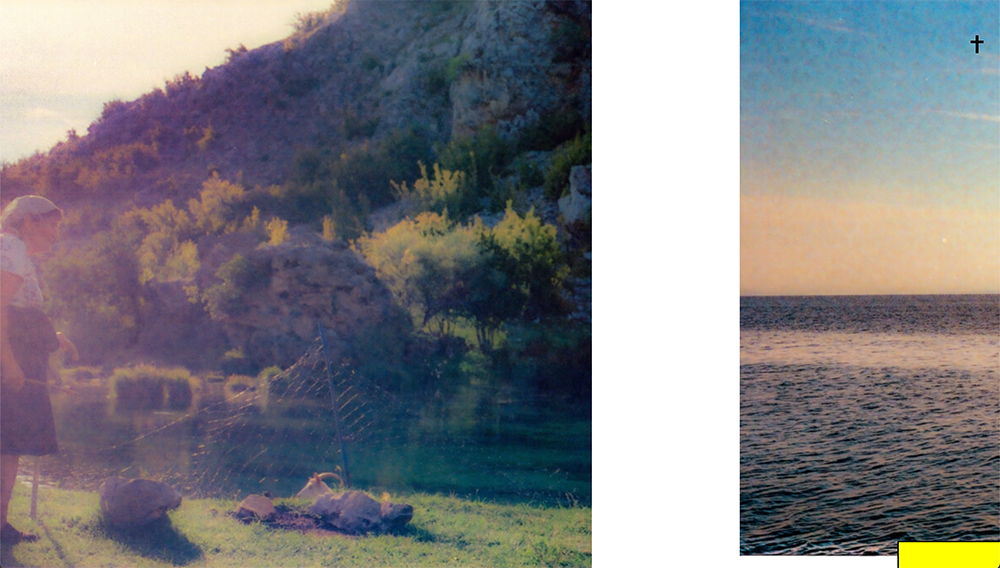
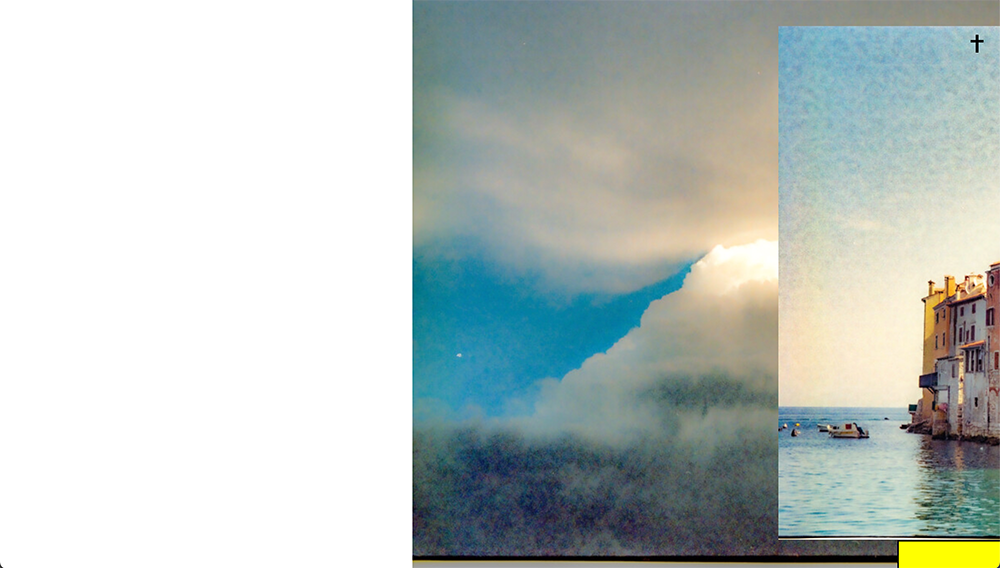
As an alternative, I created a column with browser height and assigned classes to the images. In the custom-css I put in the simple code like height:100vh; float:left;
This does not work either.
Does anyone have an idea how to solve the problem?
Here my website-link: http://robert-gruenheit.com/holiday-postcards/ -
hey there!
i see
thanks for your patience!
add this css to lay options → custom css & html → custom css:.fs-left, .fs-center, .fs-right{ height: 100vh; width: auto!important; } .fs-left{ left: 0!important; } .fs-center{ left: 50%!important; transform: translateX(-50%)!important; } .fs-right{ left: auto!important; right: 0!important; } .fs-left img, .fs-center img, .fs-right img{ height: 100vh; position: relative; width: auto; } .fs-left .ph, .fs-center .ph, .fs-right .ph{ display: none; }disable the max-width max-height setting in lay options → fullscreen slider
now in your gridder,
make sure your lay has frame top and frame bottom set to 0
then make sure your rows are "browser height" when right-clicking rows, and choosing "use browser height"then put one image inside and right click it, choose "set html class and id"
in html class enter:
fs-left
OR
fs-center
OR
fs-right
does it work for you?
i need to improve the gridder so we can just set images to a fixed height. currently, only the elementgrid has a setting to have same-height images :O
-
hey there!
i see
thanks for your patience!
add this css to lay options → custom css & html → custom css:.fs-left, .fs-center, .fs-right{ height: 100vh; width: auto!important; } .fs-left{ left: 0!important; } .fs-center{ left: 50%!important; transform: translateX(-50%)!important; } .fs-right{ left: auto!important; right: 0!important; } .fs-left img, .fs-center img, .fs-right img{ height: 100vh; position: relative; width: auto; } .fs-left .ph, .fs-center .ph, .fs-right .ph{ display: none; }disable the max-width max-height setting in lay options → fullscreen slider
now in your gridder,
make sure your lay has frame top and frame bottom set to 0
then make sure your rows are "browser height" when right-clicking rows, and choosing "use browser height"then put one image inside and right click it, choose "set html class and id"
in html class enter:
fs-left
OR
fs-center
OR
fs-right
does it work for you?
i need to improve the gridder so we can just set images to a fixed height. currently, only the elementgrid has a setting to have same-height images :O
@arminunruh
Thank you very much! Sorry for the long reply time and for not thanking you:I tried your code after your answer and it worked. After a few weeks it stopped working (pictures were no longer displayed at all).
Do you have any idea what the problem might be? Updates?!
-
.fs-left, .fs-center, .fs-right{
    height: 100vh!important;
    width: auto!important;
}

.fs-left{
    left: 0!important;
}
.fs-center{
    left: 50%!important;
    transform: translateX(-50%)!important;
}
.fs-right{
    left: auto!important;
    right: 0!important;
}

.fs-left img,
.fs-center img,
.fs-right img{
    height: 100vh!important;
    position: relative!important;
    width: auto!important;
}

.fs-left .ph,
.fs-center .ph,
.fs-right .ph{
    display: none!important;
}
try this css instead, its just with !important at the end of everything
-
.fs-left, .fs-center, .fs-right{
    height: 100vh!important;
    width: auto!important;
}

.fs-left{
    left: 0!important;
}
.fs-center{
    left: 50%!important;
    transform: translateX(-50%)!important;
}
.fs-right{
    left: auto!important;
    right: 0!important;
}

.fs-left img,
.fs-center img,
.fs-right img{
    height: 100vh!important;
    position: relative!important;
    width: auto!important;
}

.fs-left .ph,
.fs-center .ph,
.fs-right .ph{
    display: none!important;
}
try this css instead, its just with !important at the end of everything
@arminunruh
Works! Great! Thanks so much!

Hello! It looks like you're interested in this conversation, but you don't have an account yet.
Getting fed up of having to scroll through the same posts each visit? When you register for an account, you'll always come back to exactly where you were before, and choose to be notified of new replies (either via email, or push notification). You'll also be able to save bookmarks and upvote posts to show your appreciation to other community members.
With your input, this post could be even better 💗
Register Login